
Best AI Photo Restoration Tools for Family Photos
Seven AI photo restoration tools, ranked honestly for family photos — the kind that have water stains, missing emulsion, and a great-grandmother nobody alive can name. What each tool actually fixes, what it leaves alone, and what comes after the fix.
The Memory Murals Team • May 21, 2026
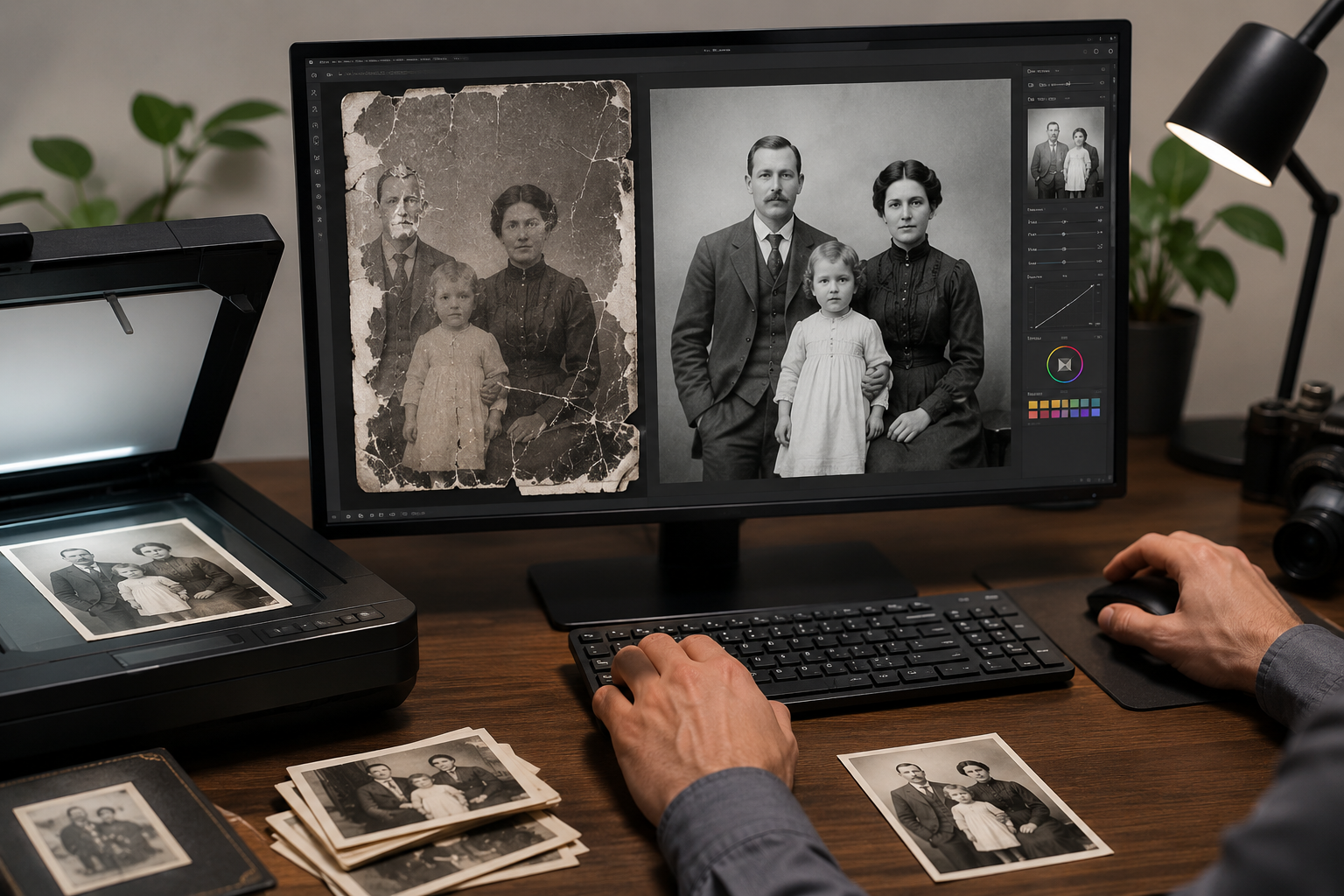
There's a photo of my grandmother on a porch in 1957. She's twenty-four. The print has a water stain across the bottom third — somebody's basement flooded, probably the same basement that took the cassette tapes and the slide carousel — and the color has shifted to that strange pink-orange that old Kodak prints get when they've been left in the wrong drawer for fifty years. I scanned it last spring. It sat in a folder called "to fix" until I admitted I had no idea where to start.
If you typed "AI photo restoration" into a search bar this week, you probably opened the same folder at some point. Maybe yours has water damage too. Maybe it's faded color. Maybe it's a black-and-white portrait someone wrote on in pen — "Mom, age 12" — across her forehead. Maybe it's all three.
The good news is that AI restoration in 2026 is actually quite good. The honest news is that the SERP you just escaped is mostly tool vendors ranking themselves number one, which is not useful when you have one specific photo of one specific person and you want to pick the right tool the first time.
This is a roundup of seven tools, tested on family photos specifically — not on portrait selfies, not on Instagram product shots, but on the kind of photo that lives in a shoebox in your parents' closet. What each one fixes well. What each one quietly does to your original. And, at the end, the part the SERP doesn't talk about — what happens to the restored photo after the model finishes its 20-second pass.
The shortcut if you only need one pick
For most people with a damaged family photo and no time to comparison-shop: Remini is the best free starting point (mobile, polished, surprisingly good on faces). MyHeritage Photo Enhancer is the best paid option if you also want colorization and animation in one bundle. Memory Murals is the right choice if you want the restored copy kept somewhere your kids can actually find it in twenty years, with the story of who's in the photo attached. The rest of this post is for people who want to make an informed pick rather than a quick one.
Seven tools, side by side
| Feature | Physical | Digital |
|---|---|---|
| Memory Murals | Photo restoration included with Premium (7-day free trial, then annual) | The restored photo stays with the family — original preserved, B&W stays B&W, lives next to the story of who's in it. |
| Remini | Free with ads (mobile); Pro plans ~$9.99/week or annual in-app pricing | Polished mobile app, exceptional face restoration. Best free starting point. |
| MyHeritage Photo Enhancer | Bundled with MyHeritage Photo plan (~$49.90/yr as of April 2026 — verify current) | Combo bundle: restoration + colorization + LiveMemory animation in one subscription. |
| VanceAI | Freemium with credit subscription (verify current pricing on vanceai.com) | Batch power user — restoring 30+ photos in one workflow with separate scratch / colorize / upscale modules. |
| Let's Enhance | 10 free credits one-time, then $9 / $24 / $34 per month (annual billing) | Pro / prosumer use case. Strong on upscaling; restoration is a side feature, not the headline. |
| Magic Memory | 1 free restoration per day, one-time credit packs (no subscription required) | Cheapest paid option. Uses the open-source GFPGAN face model. Web only, no app. |
| Hotpot.ai | Free with non-commercial license; paid volume pricing ($0.02–$0.25 per image) | Quick one-off fix, no account required. Limited damage types — best for scratches and color, not torn or water-damaged. |
Memory Murals
- PhysicalPhoto restoration included with Premium (7-day free trial, then annual)
- DigitalThe restored photo stays with the family — original preserved, B&W stays B&W, lives next to the story of who's in it.
Remini
- PhysicalFree with ads (mobile); Pro plans ~$9.99/week or annual in-app pricing
- DigitalPolished mobile app, exceptional face restoration. Best free starting point.
MyHeritage Photo Enhancer
- PhysicalBundled with MyHeritage Photo plan (~$49.90/yr as of April 2026 — verify current)
- DigitalCombo bundle: restoration + colorization + LiveMemory animation in one subscription.
VanceAI
- PhysicalFreemium with credit subscription (verify current pricing on vanceai.com)
- DigitalBatch power user — restoring 30+ photos in one workflow with separate scratch / colorize / upscale modules.
Let's Enhance
- Physical10 free credits one-time, then $9 / $24 / $34 per month (annual billing)
- DigitalPro / prosumer use case. Strong on upscaling; restoration is a side feature, not the headline.
Magic Memory
- Physical1 free restoration per day, one-time credit packs (no subscription required)
- DigitalCheapest paid option. Uses the open-source GFPGAN face model. Web only, no app.
Hotpot.ai
- PhysicalFree with non-commercial license; paid volume pricing ($0.02–$0.25 per image)
- DigitalQuick one-off fix, no account required. Limited damage types — best for scratches and color, not torn or water-damaged.
A few honest notes on this table. Prices on AI photo tools move quarterly — sometimes monthly — and Remini, MyHeritage, and VanceAI don't publish exact figures on their public pages. We've cited what we could verify in May 2026 and flagged what we couldn't. When you click through, the number on the checkout screen is the source of truth. Don't take this table's word for it the moment you reach for a card.
The other honest note: free tiers are real but usually limited to one or two photos per day, or watermarked, or capped at low resolution. If you have a stack of fifty old family photos, you're going to pay for at least one of these tools eventually. The question is which one.
The preservation-grade option
We make this one, so take what follows with that grain of salt. We tried to be specific about what it does and doesn't do — the rest of the post will be honest about competitors that do other things better.
Memory Murals' photo restoration runs on Gemini 3.1 Flash Image. The model was prompted specifically to repair damage common to family photos — fade and color shift, scratches, water staining, blur, handwritten annotations and date stamps, yellowing — while leaving the composition and facial features alone. Crucially for black-and-white photos: the model is instructed not to colorize. If you upload a 1940s B&W portrait, you get back a cleaner 1940s B&W portrait, not an automatically tinted one. (Some tools surprise people with unwanted colorization. We chose not to.)
The original is never overwritten
Restored photos save as a separate copy linked to the original via a restoredFromId field. The original is always still there, exactly as you scanned it. You can compare them with a before/after slider in the app and decide which one to keep visible — or keep both.
The restored photo lives next to the family story
This is the part no other tool on this list does. The restored copy isn't a download you have to remember to back up — it's already inside the family archive, attached to the memory it belongs to. The handwritten note your grandmother wrote on the back, the year, who else is in the frame — all of it stays with the photo, automatically organized for the next generation.
B&W stays B&W
No surprise colorization. The model is instructed to preserve era-appropriate tonality on monochrome photos. Faces aren't restructured. The grandmother in the porch photo still has her cheekbones.
Premium-only, not free
Restoration is included with the 7-day Premium trial. After that, it's part of an annual subscription — the same one that includes voice transcription, the family archive itself, and everything else. There's no standalone-restoration-only plan.
One photo at a time, not batch
If you have 200 photos to restore in one weekend, VanceAI's batch processor is built for that workflow and Memory Murals isn't. We optimized for "this specific photo of this specific person matters and I want to spend a minute on it," not for high-volume archival passes.
Best for: families with a small number of photos that genuinely matter
If you have a shoebox of forty photos and you want the keepers cleaned up and preserved with the story of who's in them — names, dates, the voicemail of the person on the porch — this is the workflow it was built for. If you have two thousand photos and pure restoration throughput is the job, see VanceAI below. Try the restoration feature on a 7-day free trial →
The free-tier benchmark
Remini is the giant of consumer AI photo enhancement — 100 million monthly active users, more than 5 billion photos and videos enhanced. It earned that scale by being the first restoration tool that genuinely impressed people on faces, especially on low-resolution selfies and old portraits. For most people typing "AI photo restoration free" into a phone, Remini is what they end up using.
The product is a polished mobile app with web access. Its restoration features are split across separate tools — Old Photos Restorer ("bring your blurred, faded, and damaged photos back to life"), Face Enhancer, Unblur, Denoiser, Image Enlarger. Each one targets a specific kind of damage and you usually run two or three in sequence on a damaged old print.
Best free tier on this list (with caveats)
You can restore real photos for free, especially on mobile. The catch: free-tier users see ads, hit daily caps, and sometimes get pushed toward upgrade prompts mid-workflow.
Face restoration is genuinely class-leading
On a faded portrait where the face has lost detail, Remini's face model recovers more plausible facial structure than most competitors. It's the reason it went viral on TikTok.
It can hallucinate features on heavily damaged faces
The same model that recovers detail also occasionally invents detail. On photos where the original face is missing more than ~30% of its data, Remini will give you a confident-looking face that may not actually be that person. Use judgment.
Pricing is in-app only, and weekly billing is aggressive
Remini's public site doesn't list prices. In-app, Pro is sold as $9.99/week or an annual plan. Several App Store reviews complain about being charged the weekly rate after a free trial they didn't realize had ended. Read the screen.
Best for: free starting point on a single photo, especially a face
If you have one photo and want to see what AI restoration looks like before paying anyone, start here. Use the free tier. Don't tap "Pro" until you're sure. And if the result is good, download the restored photo and put it somewhere that isn't a phone app that may not exist in five years. (For a side-by-side of Remini against our own restoration, see the Remini vs Memory Murals breakdown.)
The genealogy bundle
MyHeritage is the family-tree company that quietly built one of the best photo toolchains in the consumer space, originally to support genealogists with damaged ancestor photographs. Its Photo Enhancer (restore), Colorize, and LiveMemory (animation) tools share a back end that was specifically trained on old, faded, sepia, and B&W photos. If your stack is mostly pre-1970s, this is a real advantage.
The catch is the bundle. MyHeritage doesn't sell the Photo Enhancer separately — it's included in the Photo plan, which was around $49.90/year when our team last verified in April 2026. Pricing has shifted before; check the live checkout. If you also want Colorize and LiveMemory animation, that bundle is the cheapest path to all three.
Trained on actual old photos, not selfies
Most "AI photo enhancer" tools were trained on modern phone-camera images and adapted to old prints. MyHeritage went the other direction. The result is noticeable when you feed it a 1920s portrait with sepia tones and watermark stains — the output respects the era.
Restore + Colorize + Animate in one subscription
If you're going to colorize and animate the same photos you restore (the way most "memorial slideshow" projects do), the bundle is materially cheaper than buying three separate tools.
Pricing isn't transparent on the public site
You'll usually click through a "start free" flow before you see the actual annual figure, and it can vary by region and current promotion. Approach with the assumption that whatever you see in our table may have changed.
It's part of a larger product you may not want
The Photo plan exists inside a genealogy platform with ancestry research, DNA testing upsells, and family tree features. If you don't want a MyHeritage account ecosystem, the photo bundle still requires it.
Best for: pre-1970s photos and combo restore-colorize-animate projects
If your collection skews older and you want all three tools (restore, colorize, animate) in one subscription, this is the cleanest paid path. For more on the animation side specifically, our Deep Nostalgia alternatives roundup goes deeper on LiveMemory.
The batch-processing power user
VanceAI is the spreadsheet of photo restoration tools. It's not the prettiest. The interface looks like a tool from 2018. But if you have 200 old photos and you want to run "scratch removal → colorize → upscale" on all of them as a queue, VanceAI is genuinely built for that workflow in a way the consumer apps aren't.
Pricing is credit-based subscription — freemium with a few credits at signup, then monthly or annual plans. Their live pricing page wasn't responding to public requests as we wrote this; verify before subscribing.
Real batch processing
Upload a folder. Run the same restoration recipe on all of them. Walk away. No other tool on this list does this cleanly at consumer pricing.
Separate modules let you build a recipe
Photo Restorer + Photo Colorizer + Scratch Fixer + Photo Enhancer are separate tools you can chain. For specific damage types, dedicated modules beat one-button "restore everything" workflows.
Interface is dated and the learning curve is real
Expect to spend 20 minutes figuring out the workflow before you're productive. The UX wasn't designed for the casual user typing "AI photo restoration" into Google.
Credit accounting can surprise you
Each module uses credits differently. A single photo can cost 1–5 credits depending on which modules you run. Plan budget accordingly.
Best for: archivists, photo restoration freelancers, and 100+ photo projects
If you've inherited a great-aunt's photo archive and you need to clean up several hundred prints in a weekend, this is the workflow. For one or two photos, the learning curve isn't worth it.
The prosumer upscaler that also restores
Let's Enhance is primarily an upscaler — turning small low-res images into large print-ready ones — but it has a /restore-old-photos flow that does respectable damage repair, and the pricing is the most transparent on this list.
- Free: 10 credits at signup (no card required). Outputs are watermarked. Input up to 64 MP.
- Starter: $9/month annual (100 credits).
- Pro: $24/month annual (300 credits).
- Max: $34/month annual (500 credits).
- Credits: one image = one credit. Unused credits roll over while you stay subscribed.
That clarity is rare in this category and worth a lot.
Transparent pricing, real free tier, no dark patterns
The only tool on this list where you know what you're paying before the checkout screen tries to convince you otherwise.
Strong on upscaling — useful for printing restored photos large
If you want to take the restored copy of a 4×6 print and have it printed poster-size for a memorial slideshow, the upscaler is genuinely excellent.
Restoration is a side feature, not the headline
The brand is built around upscaling. The restoration model exists but doesn't get the same attention as the upscaler. Results are good, not exceptional, on heavy damage.
Watermark on the free tier outputs
The 10 free credits give you watermarked results. Useful for evaluation; not useful for the photo itself.
Best for: prosumers who'll also upscale, and people who hate opaque pricing
If you appreciate knowing exactly what you're paying and you'll also want to upscale the restored photo for print, this is the no-surprises pick.
The cheap one with the open-source heart
Magic Memory is web-based and freemium — one restoration per day, no card required to start. Paid is one-time credit packs that never expire, which makes it the cheapest paid option on this list by a wide margin. Under the hood it uses GFPGAN, an open-source face-restoration model that you can also run yourself if you're technical (it's free on GitHub).
The lowest-cost paid option here
Magic Memory advertises that it's cheaper than Remini's weekly plan and MyHeritage's annual plan — and that's accurate if you only need a handful of photos.
Web-based, no app, no signup to try
One free per day. Drag in a photo. Wait 5–15 seconds. Download. That's the entire workflow.
GFPGAN is good but not best-in-class on hard damage
The model is solid for face restoration on moderately damaged photos. It's not the strongest on heavy water damage, missing emulsion, or torn prints with content loss.
The download is the deliverable — no archive, no organization
What you get is a JPG download. What happens to that JPG after is entirely on you.
Best for: one or two photos, lowest cost, and people who want to avoid subscriptions
Pure transactional restoration with no subscription pressure. If you genuinely have one or two photos and want to be done in an hour, this is the cheapest defensible pick.
The quick-fix utility
Hotpot is the simplest of the bunch — no signup, no app, drag-and-drop on the web. It does three things: scratch removal, color sharpening, face enhancement. That's the entire feature set.
Free use comes under a Creative Commons non-commercial license, which is unusual and worth reading if you plan to use the restored photo anywhere public. Paid is volume pricing at $0.02–$0.25 per image depending on volume tier.
Fastest workflow on this list — no account barrier
Drag photo. Click restore. Download. Done. If you want zero friction and you're OK with the limits, nothing else here is faster.
The volume pricing is unbeatable at scale
$0.02–$0.25 per image is genuinely cheap for batch use cases.
Limited damage types
Scratches, color shift, faces. That's it. For torn photos, missing chunks, or heavy water damage, it isn't the right tool.
Free use is CC BY-NC — read the license
If you intend to put the restored photo in a printed memorial program or anywhere commercial, the free license terms matter. Check the page.
Best for: one quick scratch removal, no account, no commitment
The quickest fix on this list for the right damage type. Don't expect it to handle the hard cases.
A two-minute decision tree
If you've read this far, the right pick is probably obvious by now. If not:
One photo, free, fast
Try Remini's free tier first, or Hotpot if it's just a scratch. Don't pay anyone until you've seen what free can do on your specific photo.
Pre-1970s collection, mostly B&W and sepia
MyHeritage Photo Enhancer. It was trained for this. Bonus if you'll also colorize and animate.
Hundreds of photos, batch workflow
VanceAI. Power-user UX, batch queues, modular tools.
A handful of photos that genuinely matter, kept for the long run
Memory Murals. The restored copy lives with the family story, and the original is preserved automatically.
Transparent pricing, will also upscale for print
Let's Enhance. Clearest checkout on this list.
Lowest cost, no subscription, web-only
Magic Memory. One-time credits, GFPGAN model.
What happens after the restoration finishes
Here's the question that almost no listicle in this category addresses: what happens to the restored photo on Tuesday, six months from now?
The default answer, if you use any of these tools, is that the restored JPG lands in your phone's camera roll or your laptop's Downloads folder. Maybe it gets uploaded to Google Photos. Maybe it gets emailed to a sibling. And then, like most digital photos, it diffuses into the same vague cloud of "I have it somewhere" that the original print was already in before you restored it. The restoration was the easy part. The next-twenty-years part is where most family archives quietly disintegrate.
This is the gap we built Memory Murals to close. The restored photo isn't a download you have to remember to back up — it's attached to the memory of who's in it, the year, the story behind it, and the voice of the person who can tell that story. When your kids look for the porch photo of their great-grandmother in 2046, they don't have to find the JPG named IMG_4729_restored_v2.jpg in an old Google Drive. They find it because the system kept it where it belongs.
We wrote a longer piece on what to do after you restore old photos if that's the thread you want to follow. And if you haven't digitized the prints yet, our digitization guide is the upstream step.
Frequently asked questions
What's the best AI photo restoration tool overall? There isn't one. For free, Remini. For the bundle (restore + colorize + animate), MyHeritage. For batch, VanceAI. For preservation alongside the family story, Memory Murals. For lowest cost and no subscription, Magic Memory. The right tool depends on whether you have one photo or two hundred, whether the photos are pre-1970s, and what happens to the restored copy after.
Is AI photo restoration free? Yes, partially — every tool on this list has a real free path. Remini is free with ads. Hotpot and Magic Memory have free tiers with daily caps. Let's Enhance gives you 10 free credits at signup. The paid plans exist for users who restore more than a handful of photos per month or want unwatermarked, higher-resolution output. (If you want a step-by-step on the free path specifically, see our how-to walkthrough for restoring old photos with AI.)
Are AI photo restoration apps safe? Mostly yes, with two real caveats. First, most tools upload your photo to their servers to run the model — read each tool's privacy policy if your photo is sensitive. Second, the apps themselves are safe in the malware sense, but several use aggressive auto-renewal billing (especially Remini's weekly Pro tier). Read the checkout screen carefully and check your subscriptions monthly.
Do AI restored photos lose quality compared to the original? The original is unchanged on every tool reviewed here — restoration produces a new file rather than overwriting the source. The restored copy gains and loses different things: it gains apparent sharpness and removes damage, but it loses some authenticity at the pixel level because the model is partly inferring what was there. For photographs of historical importance, archivists recommend keeping both the scanned original and the restored copy. Memory Murals does this automatically; on other tools you have to do it manually.
Can AI restore a torn photo with a missing piece? Partially. If the missing piece is small (under ~10–15% of the frame) and is in a low-information area like a background, AI restoration can fill it plausibly. If the missing piece is a face or a body, the result will be the model inventing something — which is sometimes acceptable, but should never be presented as the actual original. For heavy damage, our deeper post on water-damaged and torn photos covers the specific limits.
What's the difference between AI photo restoration and AI photo enhancement? "Restoration" typically means repairing damage — scratches, fades, tears, water staining, color shift. "Enhancement" usually means improving an undamaged photo — upscaling, sharpening, denoising, recovering detail in low light. Most tools on this list do both, and the line is blurry. If your photo is from 1957 and looks its age, you want restoration. If it's a 2010 phone photo that's just blurry, you want enhancement.
Will any of these tools accidentally colorize my black-and-white photo? Some will, by default, if you upload a B&W photo through their general "enhance" pipeline. MyHeritage has a separate Colorize tool that's opt-in (good). Memory Murals' restoration is instructed not to colorize (good). Remini's behavior depends on which sub-tool you use. If you specifically want to keep a B&W photo black-and-white, check the tool's settings or use one that's explicit about preserving monochrome.
The closing beat
The porch photo of my grandmother still sits in the folder called "to fix." I'm going to use Memory Murals on it next weekend, partly because I work here and partly because the water stain across the bottom is exactly the kind of damage the model handles well — and partly because when my daughter is twenty-four herself someday, she'll find the photo not by searching her phone for IMG_4729.jpg, but because it'll be tagged with her great-grandmother's name, the year, the porch in Saskatchewan, and the voice memo I recorded with my mom telling the story of who lived in that house.
Whatever tool you pick from this list, pick one. Try the free tier. Restore the photo. And then think hard about the part nobody on the SERP wants to talk about — where the restored copy lives once it's clean.
Ready to restore and preserve? Start a 7-day free trial of Memory Murals → — bring the photo back to life, and keep it somewhere your great-grandkids can actually find it.
Related Stories
MyHeritage Deep Nostalgia Alternatives That Actually Preserve the Memory (2026)
Deep Nostalgia retired, DeepStory shut down last August, and the link someone emailed you no longer works. Here are the animation tools that actually work in 2026 — and an honest note about what a ten-second clip can and can't do.
The Memory Murals Team • April 23, 2026
How to Digitize Old Photos at Home in 2026 (No Scanner Required)
A practical, no-fluff guide to turning a shoebox of old family photos into a digital archive — using just your phone, a flatbed scanner, or a mail-in service. Real tradeoffs, no jargon.
The Memory Murals Team • April 28, 2026
What to Do with Your Parents' Photo Collection: A Gentle Estate Guide
A practical, emotionally honest guide for going through your parents' photo collection — whether you're cleaning out a house after a death, helping a parent downsize, or staring at the boxes for the third weekend in a row. What to keep, what to let go, what to scan first, and how to forgive yourself for the parts that hurt.
The Memory Murals Team • April 28, 2026