
How to Restore Old Photos With AI: Free and Paid Walkthrough
A four-step walkthrough for restoring old family photos with AI in 2026 — including the free path (Remini, Hotpot, Magic Memory) and the preservation-grade paid path (Memory Murals). The shortest possible workflow from shoebox to restored archive.
The Memory Murals Team • May 20, 2026
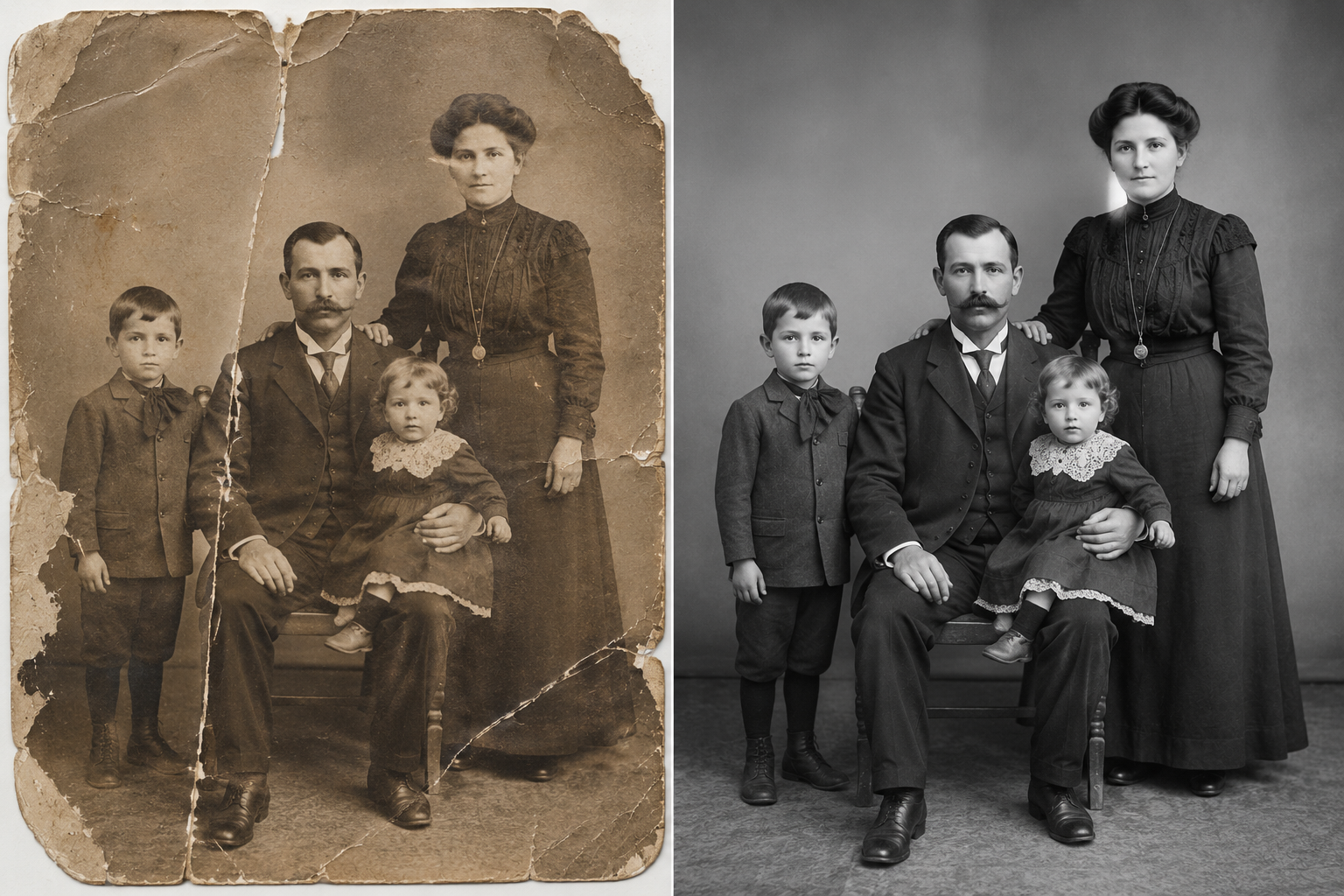
The whole workflow takes about ten minutes per photo, end to end. Scan the print. Pick a tool. Run the restoration. Save the result somewhere that'll still exist in twenty years. That's it. The rest of this post is the long version, with the specific tools, the specific steps, and the specific gotchas — but if you only have two minutes, those four steps are the entire job.
The reason this post exists is that the first three steps are well-covered everywhere on the internet and the fourth step is barely covered anywhere. So we're going to spend a little extra time on it.
The shortest possible path
Free, one photo, fast: Use Remini on your phone. Free tier, 90 seconds end-to-end, download the JPG, save it somewhere you trust. Free, on the web, no signup: Use Hotpot.ai or Magic Memory. Drag photo, click restore, download. Paid, photo + preserved with story: Use Memory Murals — the restored photo lands inside a family archive with names, year, and the story attached. Each is right for a different job.
What you'll need
You need three things: the physical photo (or an existing scan), about ten minutes per photo, and a clear idea of what you're going to do with the restored file after the model finishes. That last one is the part most tutorials skip.
If you don't have a digital copy of the print yet — if it's still sitting in a shoebox or an album — start with our digitization guide. The mechanics there take about five minutes per photo with a phone scanner app, or longer if you want to use a flatbed scanner for higher quality. You can't restore what you haven't digitized.
If you have a scan already, you're ready to start.
Match the tool to the damage
Before you pick a tool, look at the photo for fifteen seconds and identify what's actually wrong with it. Different damage types are restored well by different tools — and a few damage types are not really fixable by AI at all.
Fade and color shift
The old-Kodak pink-orange look. AI fixes this well across almost every tool on the market.
Surface scratches
Light scratches from album sleeves or handling. AI removes these reliably. Hotpot, Remini, and Memory Murals all handle scratches well.
Water damage
Water stains, edge bleed, color bleed. AI handles light water damage well. For severe damage with missing emulsion, see our dedicated water-damaged photos guide.
Blur
Camera shake, focus issues. AI is genuinely good at this — sometimes the most dramatic improvement.
Handwriting / annotations
Pen marks on the photo, date stamps, "Christmas '64" written across the bottom. Some tools remove these, some don't. Memory Murals removes them by default; others vary.
Tears with missing pieces
Partial tears with content loss. Honest answer: AI can fill small missing areas plausibly, but the filled-in content is invention, not recovery. For important photos, keep the original visible alongside the restored version.
If your photo has multiple damage types — and most old photos do — that's fine. The tools described below handle multi-damage restoration in one pass.
The three honest tool paths
There's a tool roundup with detail on seven options in our Best AI Photo Restoration Tools post. For this walkthrough, we're going to collapse those seven into three paths based on what you actually need.
| Feature | Physical | Digital |
|---|---|---|
| Free, mobile | Remini (iOS / Android) | One photo, no commitment. Best face recovery on the free tier. |
| Free, web, no signup | Hotpot.ai or Magic Memory | One photo, on a laptop, with zero account barriers. Magic Memory limits to 1 free per day. |
| Paid, restored + preserved | Memory Murals (7-day Premium trial) | Photo lands inside a family archive with names, year, and story attached. Original preserved automatically. |
Free, mobile
- PhysicalRemini (iOS / Android)
- DigitalOne photo, no commitment. Best face recovery on the free tier.
Free, web, no signup
- PhysicalHotpot.ai or Magic Memory
- DigitalOne photo, on a laptop, with zero account barriers. Magic Memory limits to 1 free per day.
Paid, restored + preserved
- PhysicalMemory Murals (7-day Premium trial)
- DigitalPhoto lands inside a family archive with names, year, and story attached. Original preserved automatically.
The honest answer for most people: if you have one photo and you've never used any of these tools, try Remini's free tier first. Restore the photo. See the result. Then decide whether you want to do this for fifty more photos, in which case the preservation path matters and you should look at the paid options seriously.
The actual steps, per tool
The free paths first.
Restoring a photo with Remini (free, mobile)
- Install Remini from the App Store or Google Play.
- Open the app. Skip or accept the initial prompt to start a free trial of Pro. (You don't need Pro for one photo.)
- Tap the Enhance tool, then select your photo from the camera roll.
- Wait 5–15 seconds while the model processes.
- If the photo is also faded or has color shift, run the Old Photos Restorer module on the output.
- Download the restored version to your camera roll.
Watch the ads. Skip the Pro upgrade prompts. The free tier is sufficient for occasional use.
Restoring a photo with Hotpot.ai (free, web)
- Go to hotpot.ai/restore-picture in a browser.
- Drag the photo onto the drop zone.
- Wait for processing.
- Download.
There's no signup required for free use, but free outputs come under a Creative Commons non-commercial license — read the page if you plan to use the restored photo in any commercial context. For personal/family use, it's fine.
Restoring a photo with Magic Memory (free + paid, web)
- Go to magic-memory.dev.
- Drag the photo onto the upload area.
- Wait 5–15 seconds.
- Download in full resolution.
Free tier gives you one restoration per day. Paid is one-time credit packs that don't expire — useful if you have a small batch but don't want a subscription.
Restoring a photo with Memory Murals (paid, preservation-grade)
- Sign up for the 7-day free Premium trial.
- Upload the scanned photo into the Media Vault (or attach it directly to a memory if you've already created one for the moment in the photo).
- Tap the photo to open the preview, then tap Restore.
- Wait 20–30 seconds while the model processes.
- The app shows a before/after slider. Tap Save restored copy. The original is preserved automatically.
- Add a name (the person in the photo), the year, and a short story — typed or recorded as a voice note. The voice note is transcribed automatically.
The restored photo now lives in your family archive, organized by person and date, accessible to the family members you've invited.
The step the SERP doesn't talk about
If you used one of the free tools above, here's the part of the workflow that almost no other tutorial covers.
The restored JPG is now on your device. It will not stay there reliably. Phones get replaced. Cloud accounts get suspended. Downloads folders get cleared. "Saved" is not the same as "preserved." Here's a reasonable backup checklist for the free path:
Two backup locations, minimum
Save the restored copy to at least one cloud service (Google Photos, iCloud, OneDrive) and one local drive (external SSD or a folder on your laptop). Don't trust only one.
Keep the original scan, not just the restored version
AI restoration is partly inference. For photos of historical importance, archivists recommend keeping both versions. Restoration is reversible only if you still have the source.
Write down who's in the photo and what year
In the file's filename, in a sidecar text file, or in the photo's caption metadata. The file alone is meaningless thirty years from now without the context.
Tell at least one family member where the photo is
If you're the family archivist by default, your kids and siblings need to know the archive exists and how to access it. Otherwise your work disappears with you.
If that checklist feels like a lot to maintain across multiple photos, that's the gap Memory Murals was designed to close — it handles the backup, the original preservation, the metadata, and the family access automatically. We wrote a deeper piece on this if you want the longer argument for why step four is the most important one.
What to do if the restoration looks wrong
A few patterns that come up regularly:
The face looks like a stranger. The AI invented features. Try a different tool, or restore at a lower intensity if the tool offers one. For heavily damaged faces, no AI restoration is fully reliable — keep the original visible alongside.
The photo got colorized when I wanted it to stay black-and-white. Some general-purpose enhancers will apply color by default. Check the tool's settings, choose a "preserve B&W" mode if available, or use a tool that doesn't colorize by default (Memory Murals, MyHeritage's Photo Repair specifically — not the Colorize tool).
The restoration removed something you wanted to keep. Date stamps and handwritten notes are sometimes removed as "damage." If the annotation is part of the historical artifact (e.g., your grandmother's handwriting on the back of the print, scanned with the front), keep the original scan and restore a separate copy — don't lose the original.
The output is too aggressive. Different tools have different default intensities. If Remini's result looks "filtered," try a more conservative tool like Memory Murals or Magic Memory.
Frequently asked questions
How long does AI photo restoration take? Per photo, between 5 and 30 seconds of processing time depending on the tool and the photo's complexity. End-to-end including the upload, the result review, and the download is typically 1–3 minutes. The slowest part of the workflow is usually you, not the model.
Is AI photo restoration free? Yes, for personal one-off use on most major tools. Remini, Hotpot.ai, Magic Memory, and Let's Enhance all have real free tiers. The catch on free tiers is usually one or more of: daily caps, watermarks on some outputs, ads, or a non-commercial-use license. For a single family photo, free is generally enough. For a stack of fifty photos, you'll either pay for one of these tools or use Memory Murals' 7-day free trial.
Do I need an account to restore an old photo? No, not for every tool. Hotpot.ai works in a browser with no signup required. Magic Memory allows one free restoration per day without an account. Remini requires an account for most workflows. Memory Murals requires an account because the photo lands inside your private family archive.
What file types work for AI photo restoration? JPG, PNG, and HEIC are universally accepted. TIFF works on some tools (Let's Enhance, VanceAI) but not all. RAW formats from professional cameras are not typically supported — convert to JPG first if needed.
Can I restore a photo I took on my phone, or only scanned prints? Both. AI restoration works on any photo — scanned old prints, blurry phone photos, low-light night shots. The tools were originally built for old prints, but they work on modern photos with damage just as well.
What if the photo is too damaged to restore? For very heavy damage — severe water damage with missing emulsion, mold, large torn-off pieces, photos completely destroyed — AI is not magic. The output will be partly invented. For photos this damaged, consider a professional photo restorer (human, not AI) for important pieces, or accept that the AI output is a creative reinterpretation rather than a true restoration.
Should I restore the photo in color or keep it black-and-white? Generally: if the photo was originally B&W (a 1940s portrait, for example), keep it B&W. Colorization is a separate creative choice that goes beyond restoration. Most tools default to preserving monochrome; Memory Murals does so explicitly. If you specifically want colorization, use a dedicated tool (MyHeritage Colorize, Palette.fm) and do it as a separate step after restoration.
The closing beat
The four steps are the four steps. Scan, pick a tool, restore, save somewhere it'll last. The first three are mechanical. The fourth is where the family archive actually gets built or quietly disintegrates, and almost nobody on the internet writing tutorials in this category seems to care about that part.
Care about it. If you only restore one photo this month, that's enough — start with the one that matters most, do all four steps for that single photo, and then do the next one next month. The whole project doesn't have to be done in a weekend. It just has to be done deliberately.
Want all four steps in one workflow? Start a 7-day free trial of Memory Murals → — restore, preserve the original, attach the story, and keep it all in one place built for the next thirty years.
Related Stories
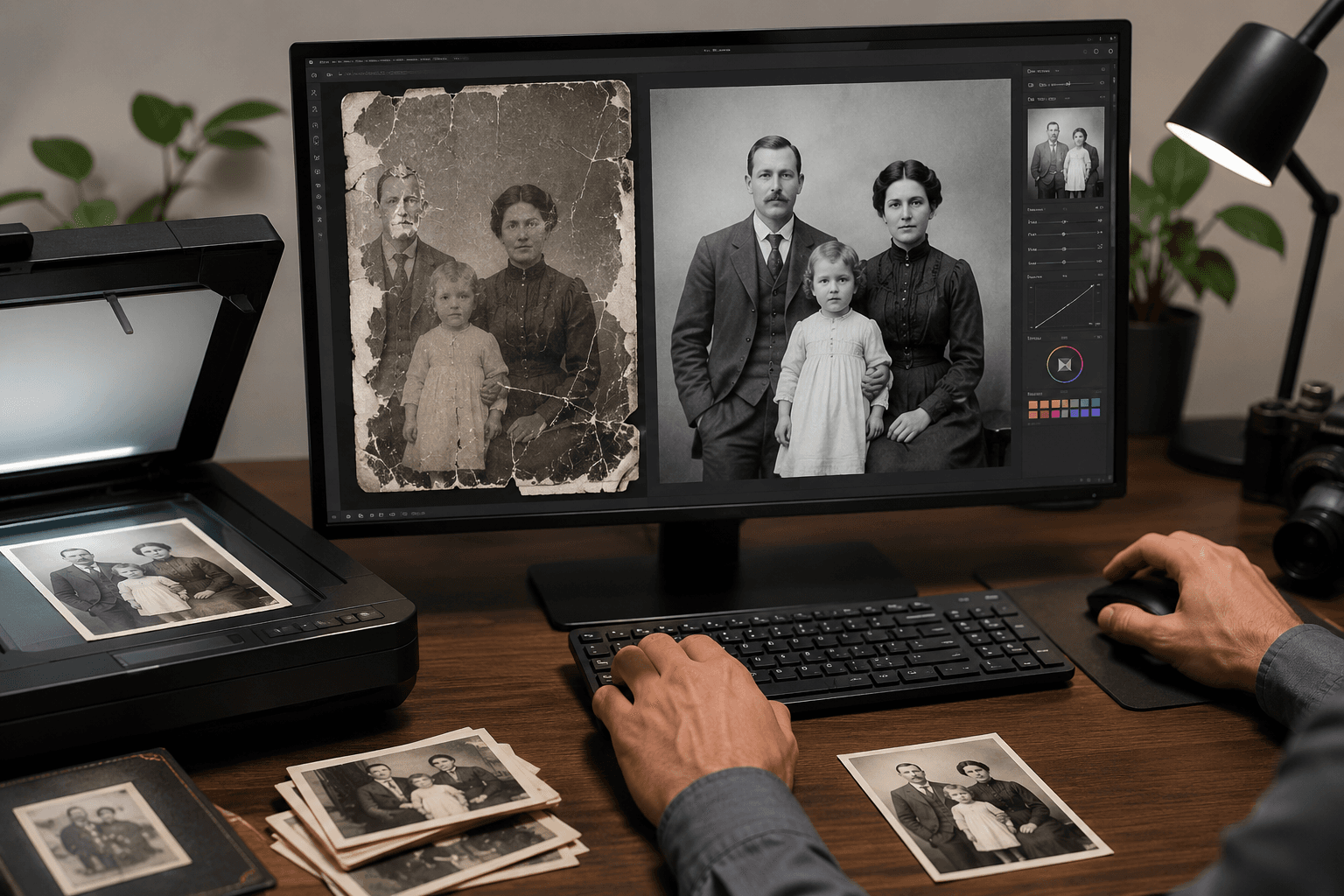
Best AI Photo Restoration Tools for Family Photos (2026 Honest Review)
Seven AI photo restoration tools, ranked honestly for family photos — the kind that have water stains, missing emulsion, and a great-grandmother nobody alive can name. What each tool actually fixes, what it leaves alone, and what comes after the fix.
The Memory Murals Team • May 21, 2026
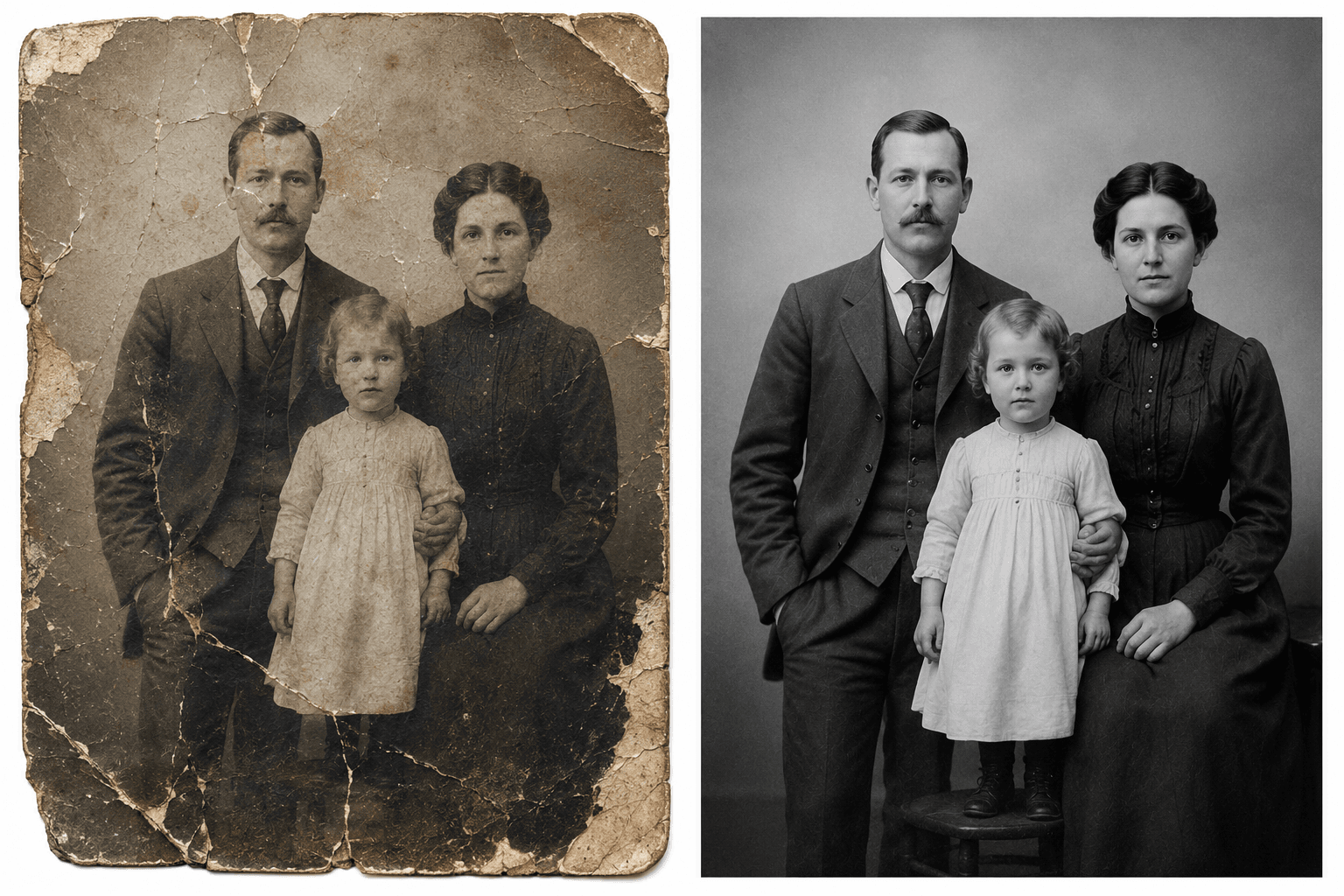
Can AI Fix Water-Damaged, Torn, or Faded Photos? (What Actually Works in 2026)
AI photo restoration can fix faded, scratched, lightly torn, and water-spotted photos reliably in 2026. It struggles with missing chunks, heavy mold, and severe creasing through faces. Here's the honest damage-by-damage breakdown of what works and what doesn't.
The Memory Murals Team • May 20, 2026
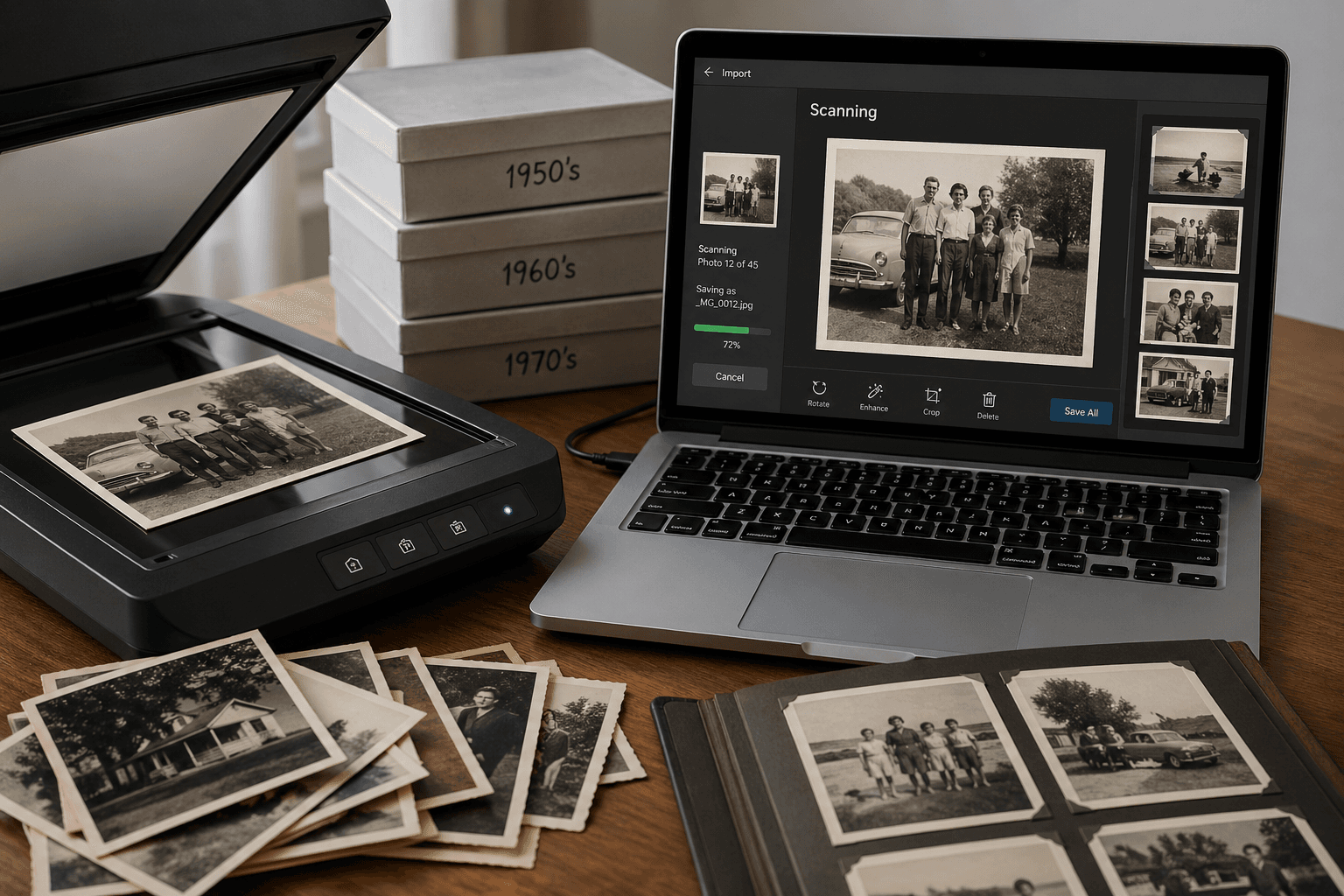
How to Digitize Old Photos at Home in 2026 (No Scanner Required)
A practical, no-fluff guide to turning a shoebox of old family photos into a digital archive — using just your phone, a flatbed scanner, or a mail-in service. Real tradeoffs, no jargon.
The Memory Murals Team • April 28, 2026