
How to Collect Wedding Photos From Guests Without Facebook
Four common plans for collecting wedding photos from guests all fail in the same way. Here's an honest 2026 guide — which day-of apps work, and where your photos should live for the next 20 years.
The Memory Murals Team • May 12, 2026
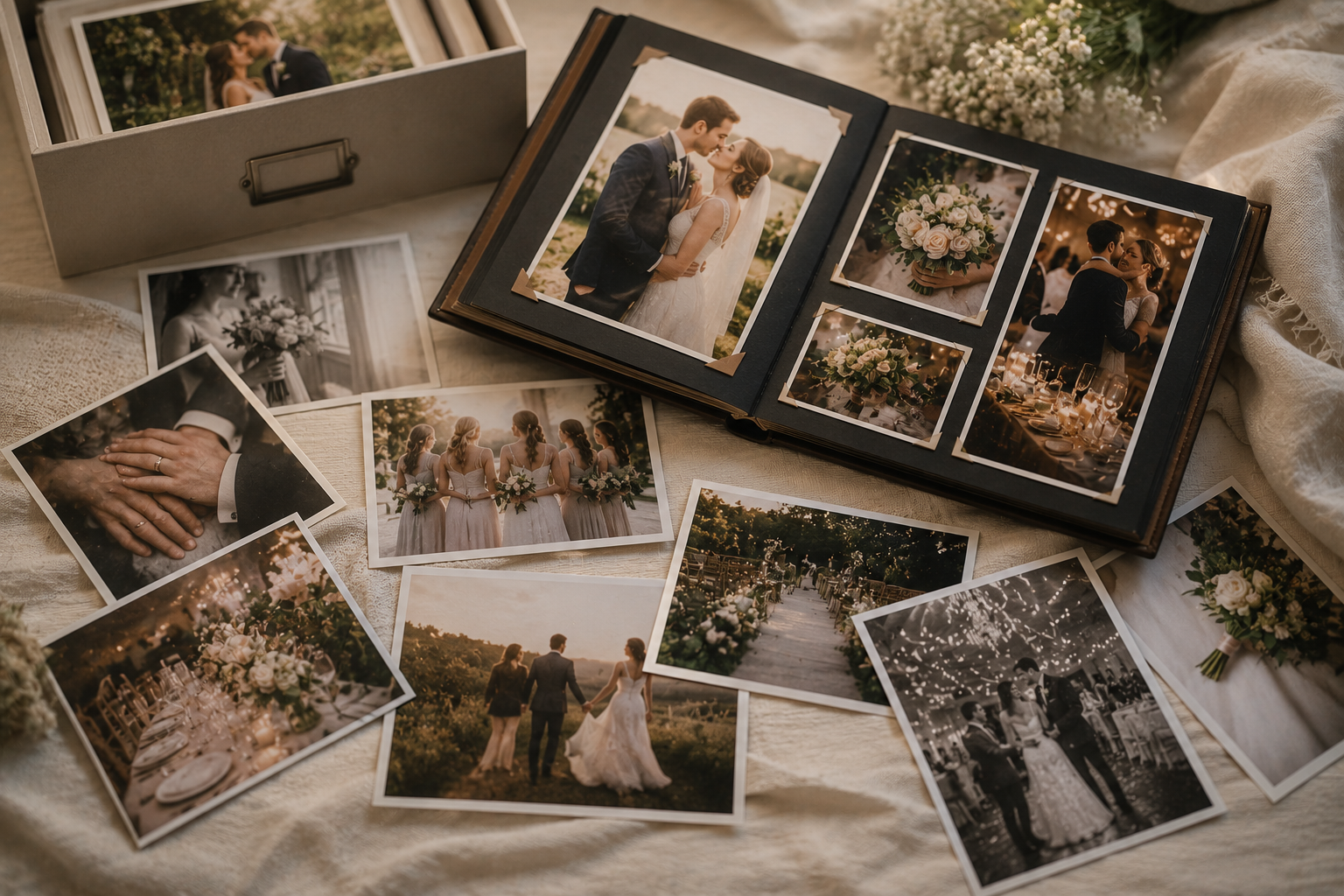
Right now, your plan to collect wedding photos from guests is probably one of these four things: a Facebook group, a group chat, "I'll just AirDrop everyone after," or a Google Drive folder nobody opens. All four fail in the same way — and most couples never see the photos sitting in their guests' phones.
This is a 2026 guide to a better system. We'll cover exactly why each of those four plans fails, an honest review of the day-of apps that actually work for guest uploads, and the question most wedding-planning checklists skip entirely: where will these photos live in twenty years?
Memory Murals didn't build a day-of QR-code wedding app. We won't pretend otherwise. So the apps we recommend below for the wedding day itself aren't us — they're the ones we'd genuinely choose. The question we do answer is the long-term one: when the wedding's over and the day-of app eventually shuts down (it will), where do the photos go?
The 30-second answer
For a fully free option — WedShoots.
For a live slideshow at the reception — Kululu.
If 90%+ of your guests are on iPhone — Apple Shared Albums.
If you don't have a wedding website yet — Joy.
For the long-term home where these photos actually live in 2046 — Memory Murals.
The four plans that fail
The Facebook group
Facebook is the default advice and it's the worst long-term choice. Three reasons. First: Meta's data-export options for groups are limited — admins can pull some content via "Download Your Information," but guest-uploaded photos, comments, and reactions don't all come through reliably, and the export tool itself changes year to year. If you ever delete the group, the photos go with it. Second: Facebook usage among adults under 30 is meaningfully lower than among 30–49-year-olds (Pew's most recent Social Media Use survey shows the 30–49 bracket is now the heaviest-using cohort, not the under-30 one), and your younger guests are the most likely to skip a Facebook group entirely. Third: even people who do upload tend to dump compressed phone-snaps into Messenger first and forget to post them at all. Facebook is the wrong privacy default for any family archive, wedding included — we made the broader case here.
The group chat
Group chats are how the photos actually get shared right now — that's the honest part. But they're a terrible system of record. Photos arrive in chronological order mixed with text. iPhone-to-Android sends drop to low resolution. AirDrop is point-to-point — one phone at a time, often with the rate-limit beach ball when seven people try at once. There's no search. And three weeks after the wedding, the chat goes quiet and the photos become unfindable.
The "I'll just ask after" plan
Without a pre-committed system, return rates collapse. People mean to send their photos, then don't. The moment passes. They get back to work. By month two, you've stopped asking because it feels like nagging. This is the most common failure mode and the hardest to recover from.
The Google Drive / Dropbox folder
Better than the others on paper. In practice: guests must have an account on whichever platform, accept a sharing-permissions prompt, remember the link three weeks later, and choose to open a desktop-style file manager on their phone. Upload rates are low. The folder fills with three photos from the bridesmaid who actually reads texts, and nothing else.
The pattern: all four are passive systems — they ask the guest to remember and act later. Memory plus future intent equals nothing. The fix is to make uploading the path of least resistance during the event itself.
What "good" looks like
If you're going to fix this, you need a system with four properties. Skip any of them and you'll be writing the "I never got my wedding photos" complaint in a year.
1. Frictionless for guests. No account creation. Either no app download, or a ten-second one. The action from a guest's perspective is: scan a QR code, tap "upload from camera roll," done. If it takes more than two taps, half your guests won't do it.
2. Auto-organized as they upload. A chronological dump of 600 photos is worse than nothing — nobody opens that. The good systems tag uploads by moment (ceremony / cocktail hour / reception / late-night) or at minimum let you sort and group them afterward.
3. Accessible long-term. The platform shouldn't quietly shut down. Wedpics — the original wedding photo app — closed in February 2019 and took everyone's photos with it. You need to be able to export everything to your own storage, in full resolution, whenever you want.
4. No platform lock-in. Your photos belong to you, not to Meta, not to a venture-backed wedding-tech company. One-click export, original resolution, intact metadata.
The day-of apps below get you the first three. The fourth — long-term accessibility, no lock-in, and a place these photos actually live for the next twenty years — is what the rest of this guide is about.
The day-of toolkit — honest review
Four apps are worth real consideration. Memory Murals is not one of them for this job — we don't do day-of QR-code guest uploads, and we don't pretend to. Here's what we'd actually recommend.
WedShoots
What it does: Couples share a code with guests, who download the WedShoots app, enter the code, and upload photos from their camera roll into one shared album. Includes likes, comments, and a projector mode that streams photos onto a screen during the reception. Pricing: free — no paid tier, no in-app purchases (as of this guide's date). Pick this if you want a fully free option and you don't mind asking guests to install a small app on the way in. What it doesn't do: skip the app install — unlike browser-based competitors, WedShoots's upload flow goes through the mobile app, which loses you the guests who'd rather just scan and tap-and-go. The post-wedding export is also a bulk download of the whole album rather than a curated gallery you'd hand off to family.
Kululu
What it does: QR-code-to-mobile-web upload (no app install for guests), plus a "live photo wall" that displays uploads on a TV or projector during the reception in real time. Polished UI, easy moderation, full-resolution downloads on paid plans. Pricing: free tier (50-upload cap, 24-hour active window — really only useful as a demo); Plus around $39 (500 uploads, 1-month active window, 3-month storage); Pro around $99 (unlimited uploads, 3-month active window, 1-year storage). Promo discounts often run on the site, so check current pricing before booking. Pick this if you want the live slideshow as part of the reception experience and you want guests uploading from a browser, not an app. What it doesn't do: re-sort uploads by guest after the fact, or build an album hierarchy for sub-events (rehearsal dinner vs. ceremony vs. reception) the way a true album manager would — everything lands in one event stream. Free-tier storage windows are also short enough that you must export promptly on paid plans too.
Joy
What it does: Joy is a wedding-website platform first, with photo collection as a feature inside it. If you don't yet have a wedding site, this consolidates both jobs. Pricing: the core wedding website, planning tools, registry, and unlimited photo storage are free. Joy charges separately for optional upgrades like custom domain names, guest text messaging, and premium stationery designs. Pick this if you haven't built a wedding website yet. Don't pick it if you already have a custom site you like — adding Joy just for photos is overkill. What it doesn't do: skip the app install for guest photo uploads — Joy's photo-collection ("Moments") flow nudges guests into its mobile app. That's an extra step compared to a pure-web QR upload, and worth weighing against the convenience of the all-in-one website-plus-photos bundle. Confirm the current flow on Joy's help center before relying on it, since they iterate on this often.
Apple Shared Albums
What it does: Built into iOS. Free. Anyone with the link can upload (subscribers can; viewers can too on recent iOS versions). Pricing: free, no upgrade tier. Pick this if 90%+ of your guest list is on iPhone. It is genuinely the simplest option for an all-Apple wedding. What it doesn't do: work well for Android guests — they get a web view with degraded UX, no notifications, and friction to upload — exactly the friction you're trying to avoid. Apple also caps individual videos at 15 minutes and delivers them at up to 720p, and the whole album maxes out at 5,000 photos and videos — so longer toasts or ceremony clips above the limit will be truncated or rejected, and large weddings can hit the album cap. Apple publishes the current limits in its Shared Album support article; confirm the numbers there before relying on it for ceremony footage.
The catch with all four
Once the wedding ends, the day-of app's job ends too. The photos sit there, in a wedding-specific platform, slowly drifting into the same fate as Wedpics. The free tiers age out. The paid tiers eventually feel pointless to renew. The platform shuts down or pivots, and the photos become hostage to a CSV export you never got around to running.
The next section is what to do with those photos.
The week-after move
The day-of app got you the photos. Now you have to move them before the platform forgets them. Three concrete actions, ideally done within the first two weeks after the wedding:
1. Export everything from the day-of app. Fact-check each app's actual free-tier retention policy before relying on this — some apps keep free-tier photos indefinitely, others delete after a window. Either way, export at full resolution while the account is active. Don't trust the platform to hold them forever.
2. Consolidate everything in one place. This is the moment where the day-of app's export, the group-chat photos people sent directly, the AirDrops from your maid of honor, and the professional photographer's deliverable all need to converge. If you don't consolidate, you'll have wedding photos scattered across six locations and you'll never find any of them again. For the broader question of whether a digital archive or a physical book is the right long-term answer, we wrote a whole piece on that comparison.
3. Add the context the pro photos don't have. The professional photographer's deliverable is beautiful and almost entirely silent about who's in each photo, what people were talking about, or why a moment mattered. Guest photos are where that context lives — the candid of your dad mid-toast, the table of your college friends, the cousin you forgot to invite to the rehearsal. Tag these photos by person while it's still fresh, not by event date.
What you're really doing in step three is the part of wedding photography most couples never get to: building a record that includes who, not just what.
The 20-year question
Here's the question almost no wedding planning advice asks: where will your wedding photos live in 2046?
Walk through the actual options:
- iCloud or Google Photos. Locked to one person's account. If that account ever closes — death, hack, forgotten password, billing lapse — every photo in it is gone. There is no shared family ownership.
- An external hard drive. External drives degrade and fail. The question isn't if but when. Backblaze's 2025 Drive Stats report — built from 13 years of data across roughly 344,000 drives — pegged the 2025 annualized failure rate at 1.36%, with a lifetime AFR around 1.30%. Those are data-center-grade drives running in climate-controlled racks; a single external drive sitting in a closet does worse, not better. Over a 20-year horizon, "small annual failure rate" compounds into "you will lose this drive at some point."
- The day-of wedding app. Probably gone by 2046. The industry has a strong precedent for shutting down (see the Wedpics shutdown referenced earlier in this guide).
- Instagram or Facebook. You don't own them. Meta can suspend an account, change a policy, or be replaced by something else. We wrote about what happens to family photos when an account closes here.
The right long-term home for wedding photos has the same properties as the right long-term home for any family memory: you own it, multiple family members can access it without depending on one person's login, it organizes by who is in each photo (not just when it was taken), and it stays accessible across decades.
That's the part Memory Murals is built for. Your wedding photos go in alongside the voice memo of your grandfather's toast, the story your mom recorded about her own wedding day, and every milestone that comes after. Photos are tagged by person — so in twenty years, your kids can find every photo their grandfather appeared in across decades, including the candid that someone uploaded from your reception. The product page has the details.
The 4-step setup plan
A timeline you can actually run.
90 days before the wedding
Pick your day-of app from the four reviewed above. Create your Memory Murals archive at the same time. Invite both sets of parents and any in-laws as view-only — they'll have access to everything without the ability to edit or delete anything you upload. Here's how view-only family access works.
1 week before
Test the QR code at your venue if possible — Wi-Fi inside the building, not just on the parking lot. Print a backup. Add one sentence to your wedding website pointing guests to the upload URL, in case the QR codes don't make it onto every table.
Wedding day
Place the QR code on the reception bar and on each table card. Hand one designated friend — not you, not your partner — the job of reminding people once during dinner. One reminder. Not five. Five reminders is how you become the couple guests roll their eyes at, and it doesn't actually raise the upload rate.
Week after
Export from the day-of app within two weeks. Upload to your Memory Murals archive. Tag photos by person while names are still fresh. Attach the voice memo of the toast — phones recorded it automatically; pull it out of your camera roll before it vanishes into the chronological backwater of your photo library.
That's the whole system. The work is mostly in the 90-days-before setup. After that, it runs itself.
Where these photos live next
When the wedding is over, the day-of app's job is done. Memory Murals is where these photos live for the next twenty years — the candid your aunt took during the first dance, the handwritten vows you scanned the morning of, the photos your kids will scroll through one day when they want to know what the day actually felt like.
Related Stories

The Best Private Family Photo Sharing Apps in 2026 (Honest Facebook Alternatives)
Most families already know they want off Facebook. The real question is where to go. We compared the 8 most popular private family photo sharing apps — honestly, with the tradeoffs that actually matter.
The Memory Murals Team • April 10, 2026

How to Share a Private Family Archive (View-Only Access for Relatives, Full Control for You)
Want relatives to read your family's archive without giving them permission to edit or delete what you've gathered? Here's how view-only access actually works — what relatives can and can't do, and how to set it up in under five minutes.
The Memory Murals Team • May 10, 2026
What Happens to Your Family Photos When You Die?
When someone dies, their iCloud, Google Photos, and social media don't transfer to family. One woman spent three years fighting Apple for her husband's wedding photos. Here's what actually happens to your digital memories — and how to make sure your family never loses them.
The Memory Murals Team • April 8, 2026