
How to Back Up iPhone Voicemails to Your Computer (2026)
iPhone voicemails live on your carrier's server, not your phone — which means they can disappear without warning. Here's exactly how to back them up to your Mac or PC in under ten minutes, with the iOS 18 share workflow, the iCloud caveats, and the third-party tools that actually work in 2026.
The Memory Murals Team • May 15, 2026
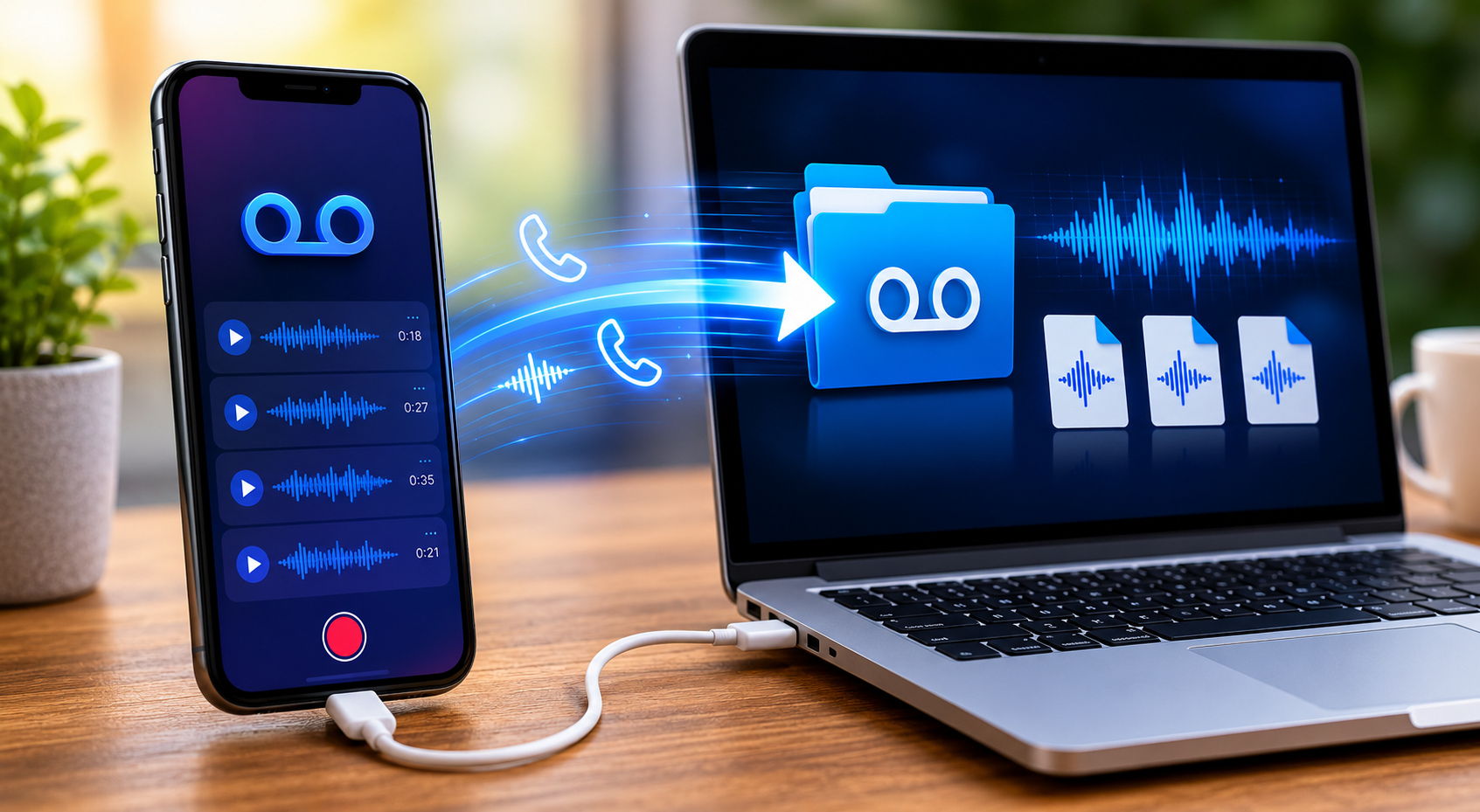
To back up an iPhone voicemail in 2026: open Phone → Voicemail, tap the message, tap the Share icon, send it to Voice Memos, then AirDrop or email the Voice Memo file to your Mac or PC. iCloud Backup does not save voicemail audio. If you don't move it off the carrier's server manually, nothing else will.
That's the short version. The longer one is below, and it matters more than you'd think, because the iPhone hides this fact behind a friendly UI that looks like everything is being preserved when nothing is.
This post is the technical companion to our broader step-by-step guide on saving a loved one's voicemail before it's gone. If you arrived here in a rush because a phone is sitting on a kitchen counter and you have a feeling there are messages you need to save — start here, follow the iPhone steps below, then loop back when there's time. The procedural part is what matters tonight.
The thing Apple does not tell you on the voicemail screen
iPhone voicemails are stored on your carrier's servers — AT&T, Verizon, T-Mobile — and not in any standard iCloud backup. If you delete the voicemail and the carrier's 30-day Recently Deleted window passes, or if the line is canceled, the audio is gone. The voicemail icon shows you a friendly list. Behind that list is a clock most people don't know is running.
Why iPhones make this harder than it should be
Apple built Visual Voicemail in 2007 and the basic mental model never changed. The icons look like files. The list looks like a folder. Tapping the message plays it instantly like a song. Everything about the interface suggests the voicemail lives on the phone the way a Voice Memo or a Photo does.
It doesn't. It lives on the carrier. The phone is showing you a cached version of a remote object.
Three consequences fall out of that.
First, when iCloud backs up your iPhone, the voicemail audio is not included. Apple's own backup documentation confirms this — purchased ringtones get backed up, the Visual Voicemail password gets backed up, but the audio of the messages themselves does not. iCloud Backup is comprehensive for almost everything else on the phone. Voicemail is the loud exception.
Second, when you switch carriers or change phones, the voicemails almost never follow. The new carrier's voicemail box starts empty. The old carrier deletes everything within their normal retention window (typically 14–30 days). The phone may still show cached entries for a few days, but the next sync usually clears them.
Third, when the person who owned the phone passes away and the line eventually closes, the voicemails go with the account. Not weeks later. Not gradually. Usually within days of the closure event. We've written the longer existential version of this in what happens to voicemails when someone dies if you want the bigger picture.
The fix for all three problems is the same: move the audio off the carrier and onto storage you actually control. The rest of this guide is how.
0
Voicemails in iCloud Backup
Apple confirms voicemail audio is not part of standard iCloud Backup — only your visual voicemail password is
30 days
iPhone Recently Deleted folder
iOS 16 and newer keep deleted voicemails for ~30 days before permanent purge — older iOS versions delete immediately
14–30 days
Carrier retention
Most US carriers auto-delete unsaved voicemails within two to four weeks regardless of what your phone shows
The fastest way to save an iPhone voicemail (under two minutes)
This is the path that works for one urgent voicemail. It uses Apple's built-in Share menu and a free app that's already on every iPhone shipped since 2016 — Voice Memos.
Save an iPhone voicemail to Voice Memos and email it to yourself
The fastest path — under two minutes per message, using only built-in iOS tools.
- 1
Open the Voicemail tab
Open the Phone app and tap Voicemail in the bottom-right corner. The list shows every voicemail your carrier still has on file. Saved ones have a small star or label; unsaved ones do not.
- 2
Tap the voicemail you want to save
Tap the message to expand it. You'll see the audio scrubber and a row of small icons below it (call back, FaceTime, info, share).
- 3
Tap the Share icon
The Share icon is the small square with an arrow pointing up out of it. It's the leftmost icon on most iOS versions. On iOS 18 it sits directly under the audio scrubber.
- 4
Choose Voice Memos from the share sheet
In the share sheet, scroll the second row of app icons until you see Voice Memos (orange waveform icon). Tap it. The voicemail is now an editable Voice Memo with the caller's number as the title — rename it to something like Dad March 2024 so you can find it later.
- 5
Open Voice Memos and verify the file
Open the Voice Memos app. The new file should be at the top. Play it once to confirm the audio is intact. This file is now on your phone independent of the carrier — even if the carrier deletes the original, this copy survives.
- 6
AirDrop or email the file to your computer
Tap the three-dot menu on the Voice Memo, tap Share, and choose AirDrop (to a Mac) or Mail (to any computer, even Windows). The file arrives as an .m4a audio file that opens in any modern media player and uploads cleanly to any cloud storage.
That's the whole flow. Two minutes per voicemail if the phone is already unlocked. The .m4a file you end up with is a small, durable, universally readable audio file that will outlive every iPhone you'll ever own.
The two-copy rule
Once a voicemail is in Voice Memos, do not stop there. Voice Memos files live on the phone, and a phone can be lost, stolen, dropped, or reset. The minute the file exists, send a copy somewhere off-phone — email to yourself, drop into iCloud Drive or Google Drive, upload to a family archive. Two copies in two places is the floor, not the goal. The phone is one location. It is not a backup.
How to back up iPhone voicemails directly to a Mac
If you've got dozens of voicemails to save — common when going through an inherited phone, or just doing a long-overdue cleanup — the one-at-a-time share sheet is slow. There are faster routes if you have a Mac.
AirDrop the Voice Memos to Mac
Save each voicemail to Voice Memos using the steps above. Then open Voice Memos on iPhone, select multiple files (tap Edit, then tap each file), tap Share, and AirDrop to the Mac. The files land in the Mac's Downloads folder as .m4a files. This works on any modern Mac running macOS 10.15 or newer.
Sync Voice Memos via iCloud
If you have Voice Memos turned on in iCloud (Settings → Apple ID → iCloud → Voice Memos), every memo you save automatically appears in Voice Memos on your Mac. Open Voice Memos on the Mac and right-click any file → Show in Finder to get the underlying .m4a. Easiest for ongoing workflows; requires iCloud storage and patience for the first sync.
Email the Voice Memo to yourself
Works for any computer, not just Mac. Tap the three-dot menu → Share → Mail. The file attaches as an .m4a. Useful when you need a copy on a Windows or Linux machine, or simply want an additional copy sitting in an email archive that you control independently of any phone.
Use Finder backup (the misleading option)
Plugging an iPhone into a Mac and running a Finder backup is what most users assume backs up voicemails. It does not, on its own, give you accessible voicemail audio files. The backup file is encrypted and proprietary; voicemails inside it are not browsable without third-party software (see the next section). Helpful as a safety net, not as a primary export method.
The Voice Memos → AirDrop route is the one we recommend for almost everyone. It uses only Apple software, leaves an editable copy on the phone and a transferable copy on the Mac, and doesn't require any paid tool. For most families, it's the right answer.
How to back up iPhone voicemails to a Windows PC
Windows users have no AirDrop, no native iCloud-synced Voice Memos app, and no built-in equivalent to Finder backups that exposes voicemail audio. The good news: the share-sheet → Voice Memos → email route works regardless of computer. The slightly more bad news: bulk export to Windows is genuinely harder than to Mac, and the paths that work all involve either email-one-at-a-time or a paid third-party app.
Three working paths from iPhone voicemail to Windows PC
Email path (free, slow, works for any number of messages)
Save each voicemail to Voice Memos using the share-sheet steps above. From Voice Memos, share → Mail, attach the file, send to yourself, then download the .m4a from Outlook or Gmail on the PC. Slow but free. Best for fewer than ten messages.
iCloud Drive web path (free, slightly faster)
On the iPhone, save each voicemail to Voice Memos, then save the Voice Memo to Files → On My iPhone → iCloud Drive folder. From the Windows PC, go to iCloud.com, sign in with the same Apple ID, open iCloud Drive in the browser, and download the .m4a files. No software install needed on the PC. Best for ten to fifty messages.
Third-party app path (paid, fastest for bulk)
Software like iMazing or Decipher Voicemail (Windows + Mac) reads the iTunes/Finder backup file and extracts voicemails as .m4a files in bulk. Both are paid one-time licenses around $30–50. Both work as of 2026. This is the only fast path if you're processing a deceased person's phone with hundreds of voicemails to triage. We don't get any affiliate revenue from these — they're just the tools that have been around long enough and are still maintained.
Verify before you trust a third-party app
The voicemail-extraction software market is full of abandoned, half-broken, or outright sketchy apps. Before paying for any tool, check the developer's website for an update timestamp within the last six months, look at independent recent reviews (not the testimonials on the developer's homepage), and download the free trial first to confirm it actually finds and exports your voicemails before paying. iMazing and Decipher are the two we've seen recommended consistently from 2022 through 2026 by independent guides — but their current state should be verified at the time you read this, not just at the time we wrote it.
What iCloud does and doesn't back up (the voicemail edition)
This is the single most misunderstood part of the entire conversation. Most iPhone users assume iCloud Backup catches voicemails because iCloud Backup catches almost everything else. It does not. Apple's published documentation on what iCloud Backup includes is explicit on this.
What iCloud Backup does include: app data, device settings, Home screen and app layout, iMessage / SMS / MMS messages, photos and videos (if iCloud Photos is off), purchase history, ringtones, and your visual voicemail password.
What iCloud Backup does not include: voicemail audio.
The visual voicemail password is included so that, when you restore a backup to a new iPhone, the new phone can authenticate to your carrier's visual voicemail service and pull whatever the carrier still has stored. Note the whatever the carrier still has stored — if the carrier already deleted the message on its 14-day retention cycle, restoring an iCloud backup will not bring it back. The backup is the door key. The audio behind the door is the carrier's, and the carrier's clock is independent.
| Feature | Physical | Digital |
|---|---|---|
| iCloud Backup saves voicemails | No. Voicemail audio is excluded from standard iCloud Backup. Only the password is included. | Manually save each voicemail to Voice Memos or Files. Those files are then included in iCloud Backup. |
| Voicemails sync across devices | No. Voicemails are tied to the SIM/eSIM and carrier line. They do not transfer to an iPad or a second iPhone. | Save to Voice Memos with iCloud syncing on, and the saved memos sync across all your Apple devices automatically. |
| Deleting a voicemail is recoverable | On iOS 16+, yes — Recently Deleted holds it for ~30 days. On iOS 15 or older, deletion is immediate and permanent. | Check Phone → Voicemail → scroll to the bottom → Deleted Messages. If the message is still there, tap Undelete. After 30 days, it's gone for good. |
| A new phone keeps my voicemails | Only if the carrier still has them on the server. The new phone pulls a fresh copy from the carrier, subject to the carrier's normal retention window. | Save the voicemails you care about to Voice Memos before changing phones. Voice Memos sync via iCloud and survive the device migration cleanly. |
| A factory reset is reversible | No. A factory reset clears the cached voicemail audio on the phone immediately. The carrier-side audio is still subject to the same retention rules. | Never factory-reset an inherited or recently deceased person's phone before doing the voicemail export. The phone cache may be the only remaining copy of certain messages. |
iCloud Backup saves voicemails
- PhysicalNo. Voicemail audio is excluded from standard iCloud Backup. Only the password is included.
- DigitalManually save each voicemail to Voice Memos or Files. Those files are then included in iCloud Backup.
Voicemails sync across devices
- PhysicalNo. Voicemails are tied to the SIM/eSIM and carrier line. They do not transfer to an iPad or a second iPhone.
- DigitalSave to Voice Memos with iCloud syncing on, and the saved memos sync across all your Apple devices automatically.
Deleting a voicemail is recoverable
- PhysicalOn iOS 16+, yes — Recently Deleted holds it for ~30 days. On iOS 15 or older, deletion is immediate and permanent.
- DigitalCheck Phone → Voicemail → scroll to the bottom → Deleted Messages. If the message is still there, tap Undelete. After 30 days, it's gone for good.
A new phone keeps my voicemails
- PhysicalOnly if the carrier still has them on the server. The new phone pulls a fresh copy from the carrier, subject to the carrier's normal retention window.
- DigitalSave the voicemails you care about to Voice Memos before changing phones. Voice Memos sync via iCloud and survive the device migration cleanly.
A factory reset is reversible
- PhysicalNo. A factory reset clears the cached voicemail audio on the phone immediately. The carrier-side audio is still subject to the same retention rules.
- DigitalNever factory-reset an inherited or recently deceased person's phone before doing the voicemail export. The phone cache may be the only remaining copy of certain messages.
The single highest-leverage move on this whole topic is the one most iPhone users don't make: turn on iCloud sync for Voice Memos (Settings → Apple ID → iCloud → Voice Memos). After that, every voicemail you Save → Share → Voice Memos becomes a cross-device, automatically-backed-up audio file. It's the closest iOS gets to a real voicemail archive, and it costs nothing extra.
What if the voicemail has already been deleted
Three cases, three different answers.
Case 1: You just deleted it on the iPhone, in the last 30 days. Open Phone → Voicemail → scroll to the bottom of the list → tap Deleted Messages. Find the message, tap it, tap Undelete. It returns to your normal voicemail list. From there, save it to Voice Memos immediately and back it up using the steps above. The 30-day window started with iOS 16; older iOS versions do not have a recovery folder.
Case 2: It was deleted more than 30 days ago, but the account is still active. The iPhone-side copy is gone. The only remaining hope is the carrier. Some carriers retain limited backend copies for short additional periods, especially for accounts that are still in good standing. Call the carrier's customer service or bereavement line and ask. It is not guaranteed and is increasingly rare in 2026, but the call costs nothing and the rare success stories are real.
Case 3: The account is closed or the line was canceled. This is the hardest case. The carrier-side voicemail database is typically purged within days of account closure, and standard customer service will tell you the data is gone. There are formal legal channels (subpoena, court order) that occasionally produce results for high-stakes situations, but they're expensive, slow, and not designed for ordinary families. If you suspect a forwarded copy of the voicemail exists somewhere — a text the person sent years ago with the audio attached, an email, a screen recording — that side path is sometimes the unexpected save. Check there before assuming total loss.
The honest version: families who act in the first two weeks after a phone arrives at their kitchen counter almost always succeed. Families who wait six months almost always discover something is missing. The technology is unforgiving on a much shorter timeline than grief allows for. If you're still in the act-now window and haven't already, our companion guide on saving the voicemails worth keeping before your phone or carrier loses them covers the broader urgency case — including the voicemails on your own phone right now that you might not realize are also on a clock.
The whole iPhone voicemail backup workflow in one sentence
Open Phone → Voicemail → tap the message → tap Share → save to Voice Memos → AirDrop or email the Voice Memo file to your computer → upload that file to two more places (cloud drive + email + family archive). No iCloud backup will do this for you. No iPhone setting will do this for you. The export is manual and has to be initiated by a human who knows the carrier is on a clock.
Edge cases worth knowing about
A handful of situations come up often enough to flag specifically.
What if the phone is locked?
If the iPhone is locked and you don't have the passcode, your standard options are narrow. Face ID stops working reliably soon after death — there are sensors that detect attention and signs of life. The route around the locked phone is the carrier's web portal: log into the account holder's carrier account from a computer with the carrier password, and most carriers expose visual voicemail through their web interface. You'll still be subject to the carrier's retention window, but the locked phone is no longer the blocker.
What about Wi-Fi calling voicemails?
Voicemails left during Wi-Fi calls land in the same carrier voicemail box as cellular calls — there's no separate Wi-Fi-call voicemail system. The backup procedure is identical.
What if Visual Voicemail isn't enabled?
Older plans, some prepaid plans, and some international SIM situations route to a traditional dial-in voicemail box instead of Visual Voicemail. In that case, the share-sheet approach above doesn't work because the messages don't appear as files on the phone. The workaround is to call your own voicemail, play the message on speaker, and use the iOS Voice Memos app on a second device (an iPad or another iPhone) to record it. Imperfect, lossy, and how families had to do it for ten years before Visual Voicemail existed.
What if you want a transcript instead of audio?
iOS Visual Voicemail transcribes messages automatically on most carrier plans. The transcript appears below the audio scrubber. Long-press the transcript text → Copy → paste into Notes or anywhere else. Transcripts are not a substitute for the audio — the voice is the whole point — but they're useful as an index and a searchable record. Save both.
If you're working through an inherited iPhone
A specific case worth pulling out because it comes up often enough. A parent or grandparent has passed, the family has the phone, and someone has to triage the voicemails before the account gets closed.
The instinct is to leave the account closed quickly to save money. The better instinct, if budget allows, is to keep it open for sixty to ninety days while doing the audit. The wireless bill is the cheapest insurance available against permanent loss of voicemail audio that nobody has thought to listen to yet.
Inside that window, the procedure is:
Audit and backup process for an inherited iPhone
Do not factory reset the phone
The cached voicemail audio on the device may be the only remaining copy if any of the messages were already deleted on the carrier side. A factory reset destroys that cache irretrievably. Treat the device as evidence until the audit is done.
Open Phone → Voicemail and scroll the entire list
Listen to every voicemail. Note which ones matter — birthday calls, holiday messages, last conversations, the voice itself even on routine messages. Don't skip the routine ones. The voice on a casual "I'll be there in ten" is the same voice; the message is what's keeping it.
Save the keepers to Voice Memos one by one
Use the share-sheet flow above. Rename each file to something meaningful (name, date, occasion) as you save it — the carrier metadata is sparse and the future-you will not remember which "+1-415-555-..." was the call you cried at.
Check Deleted Messages for additional recoveries
Scroll to the bottom of the voicemail list. If the iPhone is on iOS 16 or newer, deleted messages from the last 30 days are recoverable. Save anything there as well — there may be messages the person deleted accidentally before they passed.
Export all saved Voice Memos to a second location
AirDrop to a Mac, email to yourself, upload to a family archive. The phone is one copy. The cloud is another. A family archive is the third, and the one that survives device replacements, account changes, and the next decade of cloud-service mergers and shutdowns.
Only then close the carrier account
Once the voicemails are in three places that aren't the deceased person's carrier account, you can close the line with confidence. Most carriers will waive contract penalties and final-bill fees on bereavement calls if you ask.
This sequence is what families who later say "we saved everything that mattered" did, and almost word-for-word what families who later say "we missed a few" wish they had done.
Once your voicemails are off the phone
The Voice Memos files you've created are durable, portable, universally readable .m4a audio. They will work in any media player on any operating system. They will survive a phone upgrade, a carrier change, an iCloud account migration. They are, for the first time, files you actually own.
What comes next is the part most families don't quite think about until later: organizing those files so they're findable in twenty years. A folder full of "Voice Memo 47.m4a" with carrier numbers as titles is technically a backup, but it's the kind of backup that becomes unreadable archaeology by the time someone wants to find a specific message. The labeling matters. The story behind the recording matters. The context of when the call was, what the person was calling about, who else was alive at the time the message was left — all of that is what turns an audio file from a curiosity into an heirloom.
Memory Murals is the family archive we built for that wider problem. A private place to put the voicemails, the photos, the stories, and the context that makes them findable a generation from now instead of scattered across dead devices. It's audio-first by design — a saved voicemail is one of the highest-value objects in any family's archive, and most archives treat audio as an afterthought.
The fastest version of the workflow above ends with three steps: save to Voice Memos, AirDrop or email to your computer, drop into a family archive. The phone is one location. Your computer is two. The archive is three. Three copies in three places is what survives.
Ready to give those voicemails a home that isn't a carrier server? Start a private family archive free →
Related Stories
How to Save a Deceased Loved One's Voicemail Before It's Gone Forever
Your phone carrier is counting down to the day your loved one's last voicemail disappears forever. Most families don't know this until it's too late. Here's exactly how to save it — on iPhone and Android — before the clock runs out.
The Memory Murals Team • April 19, 2026
What Happens to Voicemails When Someone Dies or Cancels Their Account?
When someone passes away or closes their phone account, their voicemails don't sit safely in storage waiting for family. They're on a quiet countdown — and most carriers won't tell you it's running. Here's exactly what happens, and when.
The Memory Murals Team • May 14, 2026
How to Save the Voicemails Worth Keeping (Before Your Phone, Carrier, or Number Loses Them)
There are voicemails on your phone right now that you'd cross a city to recover if you lost them — your kid's voice from a phase that's already over, a partner singing into the answering machine, a grandparent's holiday call. Here's how to save them in five minutes, before your phone, your carrier, or your number takes them away.
The Memory Murals Team • May 3, 2026